
Tags
jvim treats inline tags as searchable note metadata. When you type # in the editor, a completion popup can suggest tags already found in the open folder. The F7 tag browser lists tags with counts and can hand a selected tag off to vault search.
Tag Autocomplete
Section titled “Tag Autocomplete”Type # anywhere in the editor body and jvim opens a real-time completion popup listing vault-wide tags that match the characters you have typed so far. The list updates on every keystroke. Select an entry and press Enter to insert the complete tag into the document; Esc dismisses the popup without inserting anything.
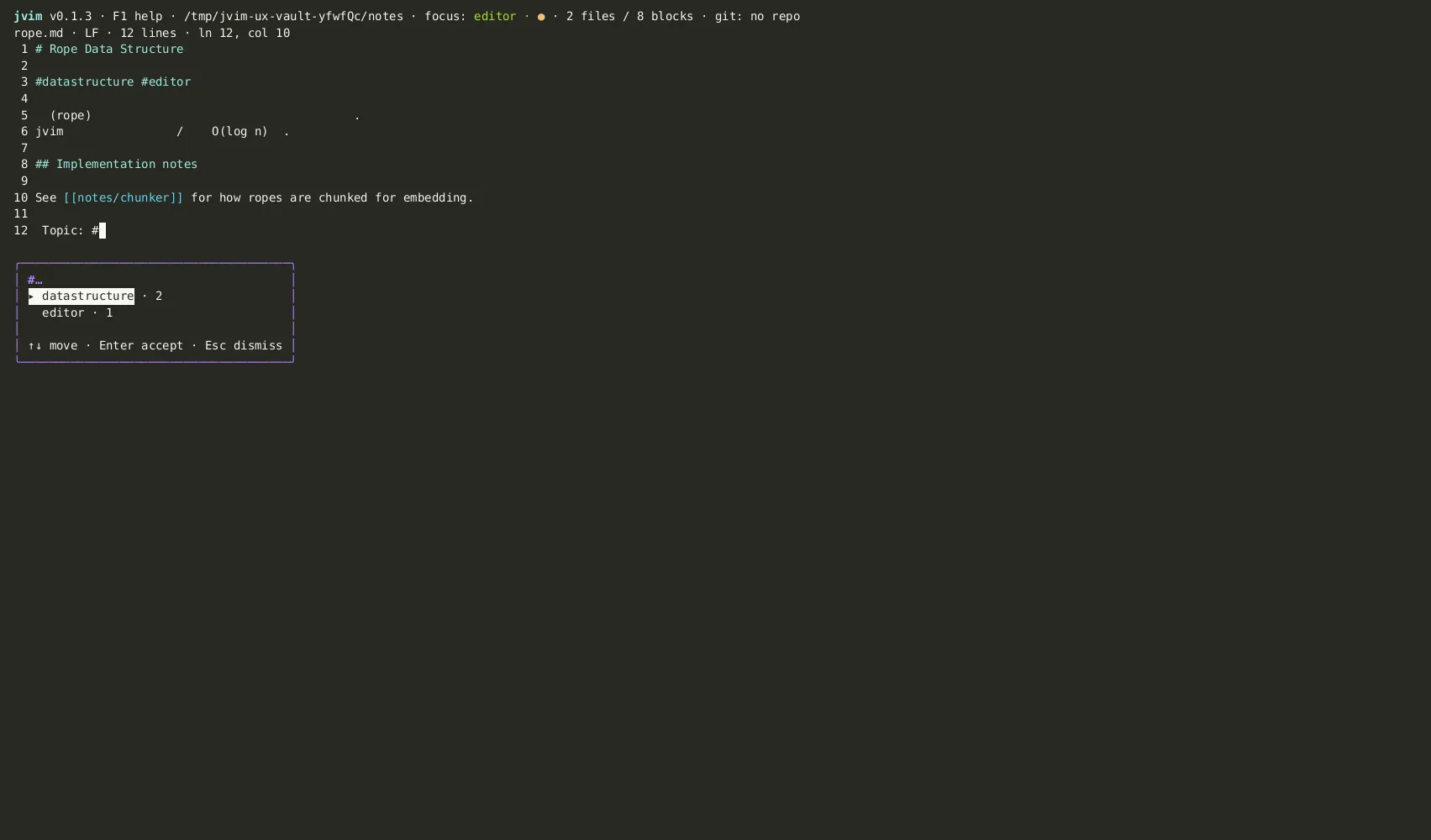
| Keys | Action | Notes |
|---|---|---|
# | Trigger tag autocomplete | Opens the completion popup as you type the tag name |
↑ / ↓ | Navigate suggestions | Moves the selection through the tag list |
Enter | Insert selected tag | Completes the tag and returns focus to the editor |
Esc | Dismiss popup | Closes without inserting; cursor stays at the # position |
Tag Browser
Section titled “Tag Browser”Press F7 to open the tag browser overlay. The browser shows every tag in the vault together with:
- Frequency — how many files carry that tag.
- Representative file — one matching file path to help identify where the tag appears.
Type any characters to filter the list by prefix. When you find the tag you want, press Enter to hand off to vault search with a tag:<name> query pre-filled.
| Keys | Action | Notes |
|---|---|---|
F7 | Open tag browser | Vault-wide tag list with frequency counts and a representative file |
↑ / ↓ | Navigate tags | Moves through the filtered tag list |
Enter | Search files with this tag | Hands off to vault search with tag:<name> pre-filled |
Esc | Close tag browser | Returns focus to the editor |
Prefix Filtering
Section titled “Prefix Filtering”Inside the tag browser, start typing to narrow the list to tags that begin with those characters. The filter is case-insensitive and updates in real time. Clear the filter with Backspace to return to the full tag list.