
Editor Basics
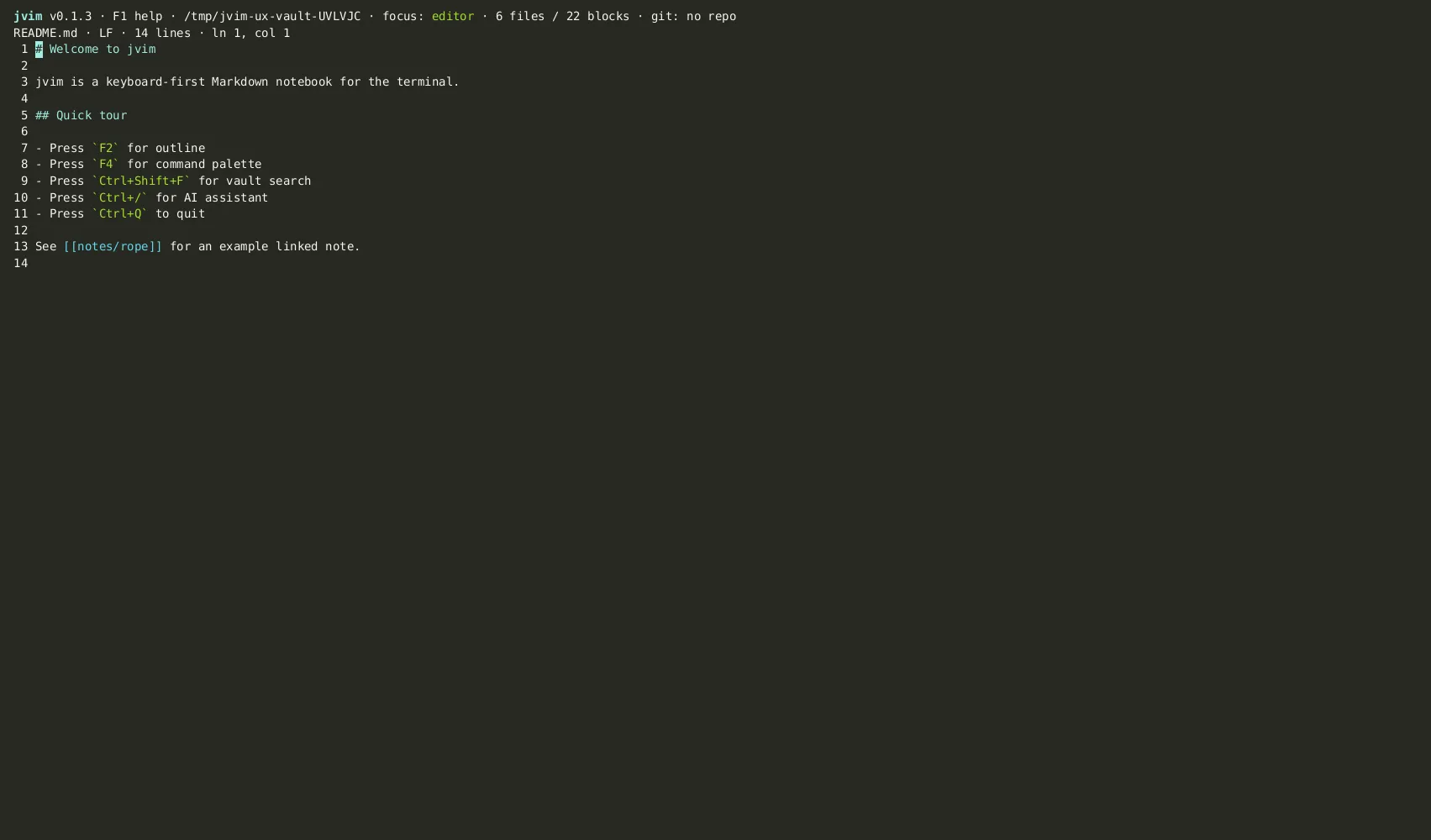
jvim launches directly into an editable buffer — no mode switching, no setup. This page covers the fundamentals: opening files and vaults, reading the status bar, saving, and undo/redo.
Demo recording in progress — coming in the next release.
Opening Files and Vaults
Section titled “Opening Files and Vaults”Pass a single file or a directory to jvim from the terminal. Both work:
jvim notes.md # open one filejvim ./my-vault/ # open a vault (file tree on the left)If the path does not exist, jvim creates an empty buffer — the same semantics as vi or Notepad. The file is only written to disk when you explicitly save.
| Keys | Action | Notes |
|---|---|---|
Ctrl+S | Save | Atomic write + fsync — prevents partial writes on crash |
Ctrl+Shift+S | Save as | Write to a new path; current buffer follows the new file |
Status Bar Indicators
Section titled “Status Bar Indicators”The top status bar updates in real time as you edit. The key markers:
●— the buffer has unsaved changes.- EOL — the current line-ending style (
LF,CRLF). - Save state — shows
Savedmomentarily after a successful write. - Git diff summary — insertions/deletions relative to the last commit, updated on each save.
Until you save, only the in-memory buffer is modified. The ● dot disappears as soon as Ctrl+S completes.
Undo, Redo, and Select All
Section titled “Undo, Redo, and Select All”jvim keeps a full undo history for the session. There is no undo limit during a single editing session.
| Keys | Action | Notes |
|---|---|---|
Ctrl+Z | Undo | Step back one edit |
Ctrl+Y | Redo | Re-apply an undone edit |
Ctrl+A | Select all | Select the entire buffer contents |
EOF Padding
Section titled “EOF Padding”Empty lines at the bottom of the viewport are padded with vim-style ~ markers. These are visual only — they do not appear in the file. The padding makes the viewport boundary obvious so you always know where the document ends.