
Navigation
jvim provides several overlays for fast navigation: a command palette for common actions, a file palette for vault-wide file switching, an outline panel for jumping between headings, and buffer tabs for cycling open documents.
Command Palette
Section titled “Command Palette”The command palette lets you invoke common jvim actions by typing part of their name. It is useful for frequently used actions that are also available elsewhere in the UI.
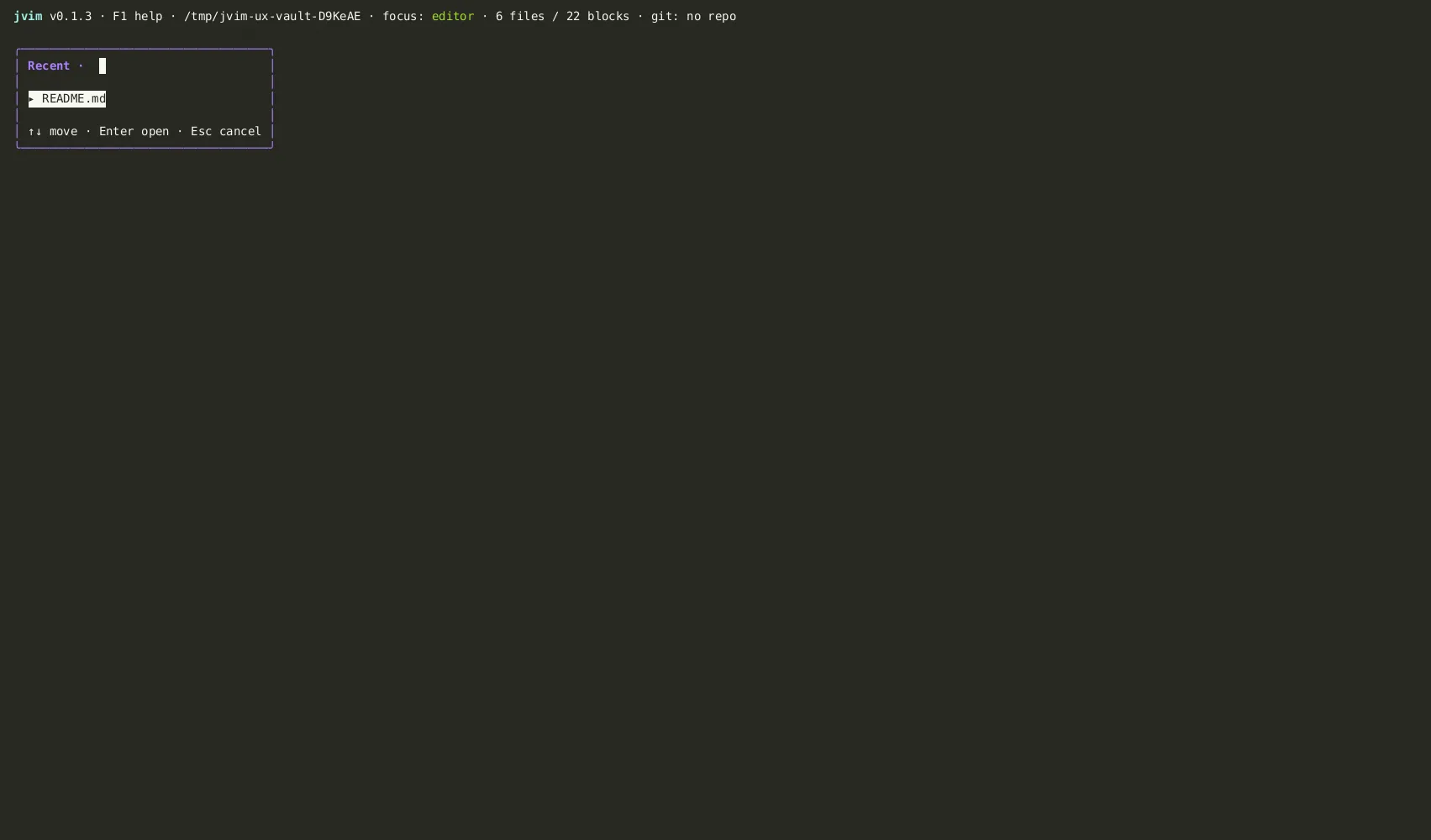
| Keys | Action | Notes |
|---|---|---|
F4 | Open command palette | Fuzzy-search common actions |
Ctrl+P | Open command palette | Same as F4 |
Enter | Run selected command | Executes the highlighted entry |
Esc | Close | Dismiss without running anything |
Examples of actions reachable via the palette: save, close document, find, replace, outline, vault search, backlinks, and selected git operations.
File Palette
Section titled “File Palette”The file palette opens a fuzzy-search overlay across every file in the vault. It is faster than the file tree when you know approximately what the file is named.
| Keys | Action | Notes |
|---|---|---|
Ctrl+O | Open file palette | Vault-wide fuzzy filename search |
Enter | Open selected file | Opens the file in the editor |
Esc | Close | Return to the editor without opening |
Outline Overlay
Section titled “Outline Overlay”The outline overlay lists all Markdown headings in the current document, indented by depth. It is the fastest way to jump between sections in a long document.
| Keys | Action | Notes |
|---|---|---|
F2 | Open outline | Shows headings for the current buffer |
↑ / ↓ | Select heading | Move through the heading list |
Enter | Jump to heading | Moves the cursor and closes the overlay |
Esc | Close | Dismiss without jumping |
Go to Line
Section titled “Go to Line”When you know the exact line number you need, skip the outline and jump directly.
| Keys | Action | Notes |
|---|---|---|
Shift+F3 | Go to line | Opens a dialog — type a line number and press Enter |
Buffer Tabs
Section titled “Buffer Tabs”Each file you open is kept in a buffer. You can cycle through all open buffers without leaving the editor.
| Keys | Action | Notes |
|---|---|---|
Ctrl+PgUp | Previous buffer | Switch to the previous open tab |
Ctrl+PgDn | Next buffer | Switch to the next open tab |