
Buffers and Tabs
Every file you open in jvim becomes a buffer — an in-memory copy of the file’s content. You can have many buffers open at once. When two or more are open, jvim shows a tab bar at the top of the editor area so you can see all open files and cycle between them without using the file tree.
Demo recording in progress — coming in the next release.
Opening Multiple Buffers
Section titled “Opening Multiple Buffers”Open additional files by pressing Ctrl+O (file palette) or by pressing Enter on a file in the file tree. Each opened file appears as a new tab. The tab bar becomes visible as soon as there are two or more open buffers.
| Keys | Action | Notes |
|---|---|---|
Ctrl+O | Open file palette | Fuzzy-search the vault and open a file into a new buffer |
Ctrl+N | New buffer | Create an empty unnamed buffer |
Cycling Between Buffers
Section titled “Cycling Between Buffers”Cycle through open buffers with keyboard shortcuts. The tab bar highlights the currently active buffer.
| Keys | Action | Notes |
|---|---|---|
Ctrl+PgDn | Next buffer | Switch to the next tab to the right |
Ctrl+PgUp | Previous buffer | Switch to the previous tab to the left |
Some terminals capture Ctrl+PgUp / Ctrl+PgDn for their own tab switching before passing the keys to the application. If the shortcuts do not respond, move focus to the file tree first (press Ctrl+E), then use Ctrl+Shift+→ / Ctrl+Shift+← to cycle buffers instead.
Closing Buffers
Section titled “Closing Buffers”Close the active buffer with Ctrl+W. If the buffer has unsaved changes (marked with ●), jvim shows a confirmation prompt before closing.
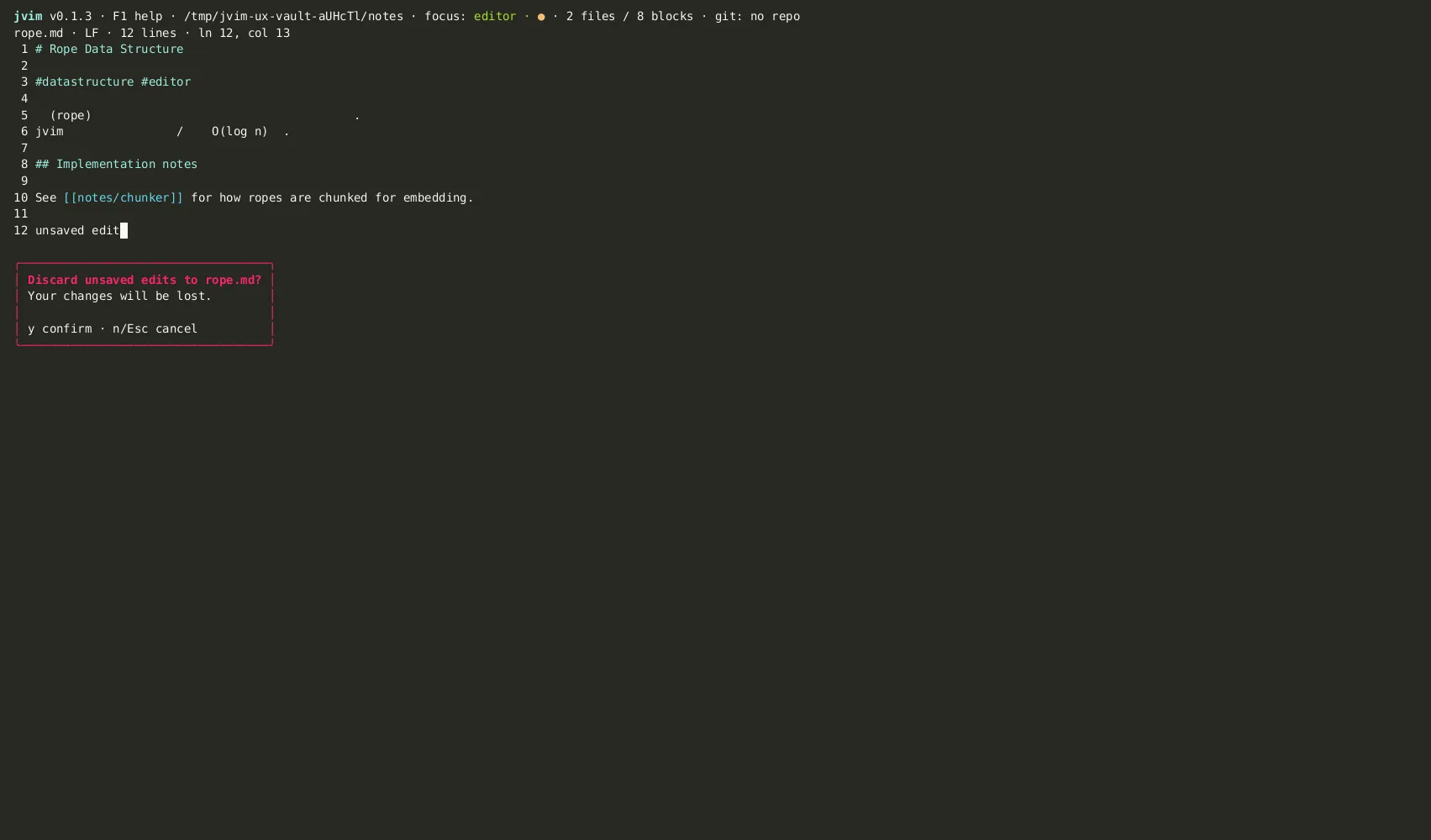
| Keys | Action | Notes |
|---|---|---|
Ctrl+W | Close current buffer | Prompts for confirmation if the buffer has unsaved changes |
Ctrl+S | Save buffer | Save before closing to avoid the confirmation prompt |
If you close the last open buffer, jvim returns to an empty editor state. The application stays open — you can open a new file or create a new buffer immediately.
Dirty Marker
Section titled “Dirty Marker”Each tab in the tab bar shows the file’s basename. When the buffer has unsaved changes, a ● (filled circle) appears alongside the filename. The dot disappears as soon as you save with Ctrl+S.
This marker is per-buffer — you can have some tabs clean and others dirty simultaneously. The ● also appears in the main status bar for the currently active buffer.