
Find & Replace
jvim’s in-document search highlights matches in real time as you type and lets you step through them one by one. A separate replace-all dialog handles bulk substitutions without leaving the keyboard.
Demo recording in progress — coming in the next release.
In-Document Search
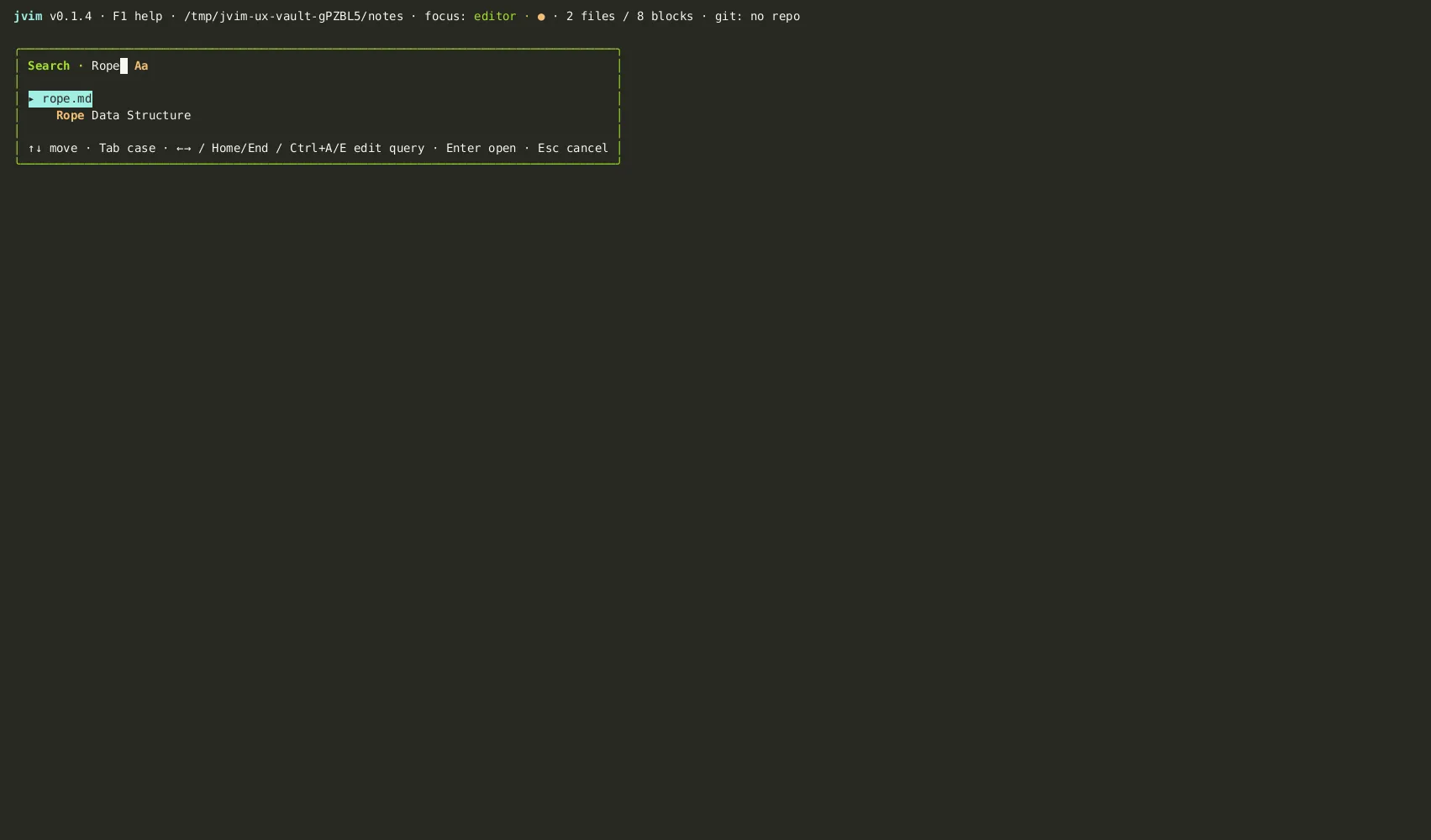
Section titled “In-Document Search”Press Ctrl+F to open the search overlay. Start typing and every match in the current buffer is highlighted immediately. A match counter in the overlay shows how many occurrences were found.
| Keys | Action | Notes |
|---|---|---|
Ctrl+F | Open search overlay | Starts a live search in the current buffer |
Enter | Next match | Jump forward to the next occurrence |
Shift+Enter | Previous match | Jump backward to the previous occurrence |
Esc | Close search | Dismiss the overlay; highlights clear |
Case Sensitivity Toggle
Section titled “Case Sensitivity Toggle”By default, search is case-insensitive. Press Tab inside the search overlay to toggle case sensitivity. When case-sensitive mode is active, an Aa badge appears in the status bar.
| Keys | Action | Notes |
|---|---|---|
Tab | Toggle case sensitivity | Aa badge in status bar indicates case-sensitive mode is on |
Toggling immediately re-runs the search with the current query, so the match count and highlights update at once.
Replace All
Section titled “Replace All”Ctrl+T opens the replace-all dialog. It prompts for two strings — the search term and the replacement — then substitutes every occurrence in the buffer in one operation.
| Keys | Action | Notes |
|---|---|---|
Ctrl+T | Open replace-all dialog | Enter search string, then replacement string, then confirm |
The replacement is applied to the in-memory buffer. Review the result before saving with Ctrl+S. If the result is not what you intended, Ctrl+Z undoes the entire replacement in one step.