
File Tree
The file tree sits on the left side of the jvim layout when you open a vault directory. It uses vim-style movement keys and supports instant type-to-filter so you can locate files without leaving the keyboard.
Demo recording in progress — coming in the next release.
Focusing the Tree
Section titled “Focusing the Tree”The tree and the editor share the same window. Toggle focus between them at any time:
| Keys | Action | Notes |
|---|---|---|
Ctrl+E | Focus file tree | Switch focus from editor to tree |
Tab | Focus file tree | Same as Ctrl+E |
q | Back to editor | Return focus to the editor pane |
Navigating the Tree
Section titled “Navigating the Tree”Once the tree has focus, use standard vim movement keys to move through entries:
| Keys | Action | Notes |
|---|---|---|
j / k | Move down / up | One entry at a time |
g | Jump to top | First entry in the tree |
G | Jump to bottom | Last entry in the tree |
Enter | Open file | Opens the selected file in the editor |
Real-Time Type-to-Filter
Section titled “Real-Time Type-to-Filter”With tree focus active, start typing any sequence of characters. The tree filters instantly — only entries whose names contain the typed string remain visible.
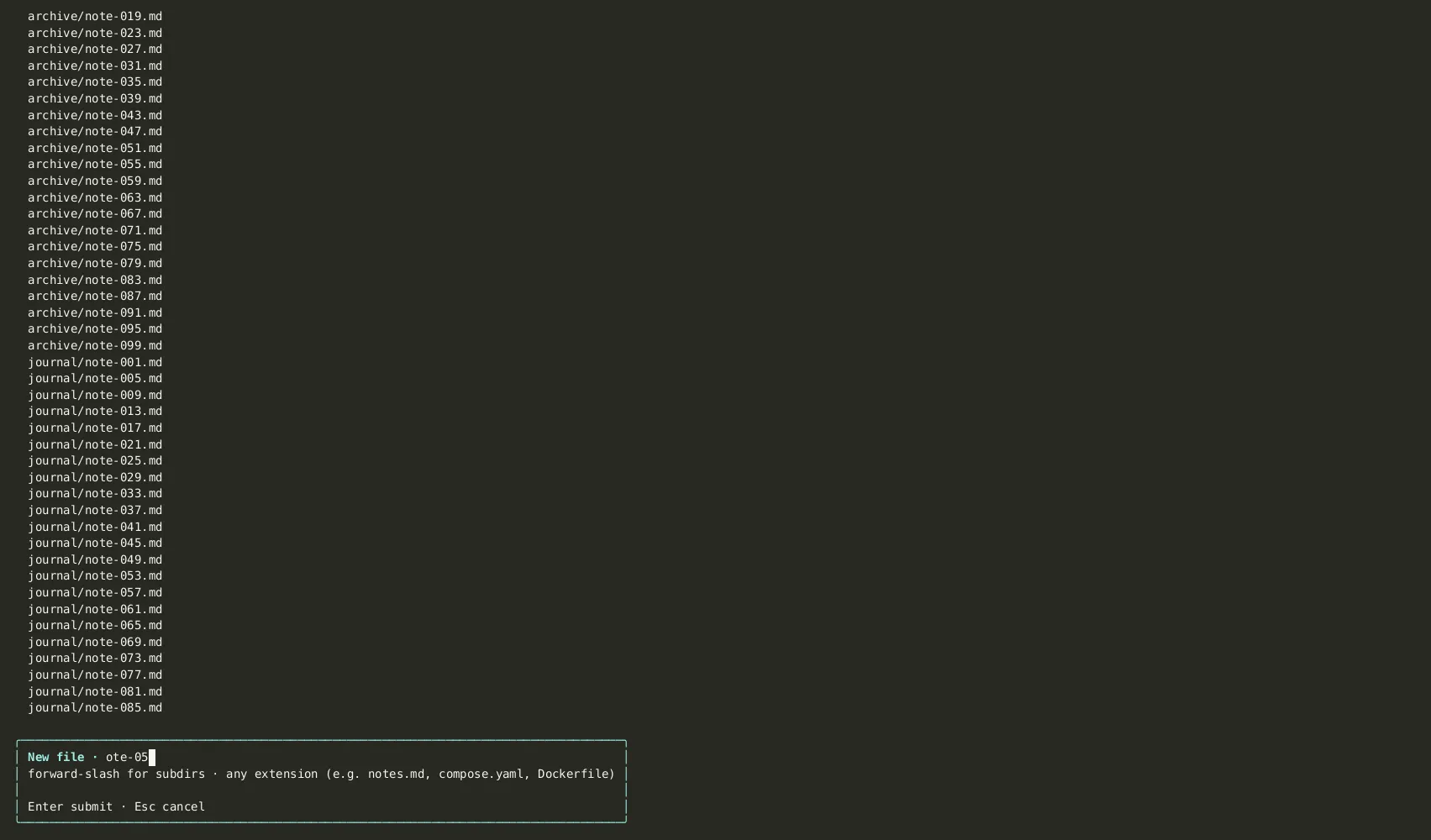
There is no separate search box to open. The filter activates as soon as a printable character is typed. Press Backspace to narrow or broaden the filter, or Esc to clear it and show all entries again.
Creating, Renaming, and Deleting Files
Section titled “Creating, Renaming, and Deleting Files”All file management operations are available directly inside the tree. A confirmation dialog appears before any destructive action.
| Keys | Action | Notes |
|---|---|---|
n | New file | Prompts for a filename; creates the file in the current directory |
r | Rename | Rename the currently selected entry |
d | Delete | Delete with a confirmation dialog — cannot be undone |
EOF Padding in Sparse Vaults
Section titled “EOF Padding in Sparse Vaults”Empty or lightly-populated vaults show ~ padding below the last tree entry, consistent with the editor viewport. The markers are visual only.